How do I set my alerts to vibrate when using Dexcom G7 CGM?
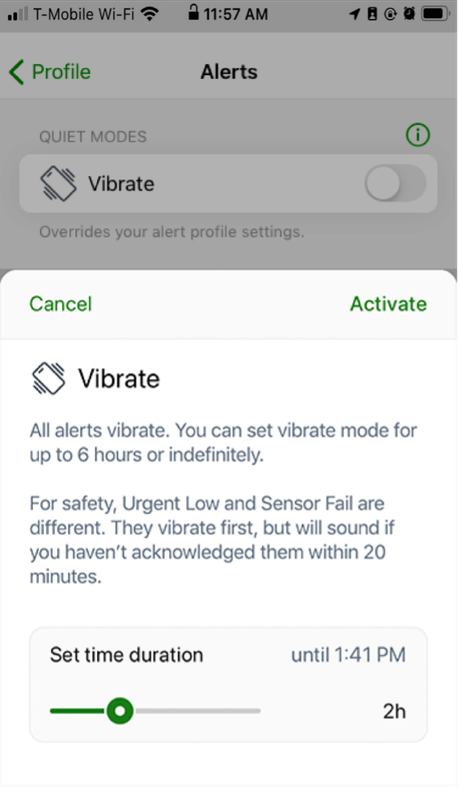
When the Vibrate Quiet Mode is enabled, all Dexcom G7 alerts will vibrate. You can set Vibrate mode for up to 6 hours or indefinitely. The Urgent Low Soon and technical alerts will still escalate to sound if not acknowledged.
Smartphone App:
To activate the Vibrate Quiet Mode in your G7 app:
- Go to Profile > Alerts > Show Quiet Modes
- Toggle Vibrate to turn it on
- Select how long the Quiet Mode will last
- Tap Activate
- Authenticate if prompted
Your smartphone vibrate setting must be on for the alerts to vibrate. For more information, go to:
iOS
Settings > G7 iPhone Safety and tap Complete Guide to Dexcom iPhone Settings
Android
Settings > G7 Android Safety and tap Complete Guide to Dexcom Android Settings
Note: Urgent Low and technical alerts act differently; if you don’t acknowledge them, they will sound.
G7 Receiver:
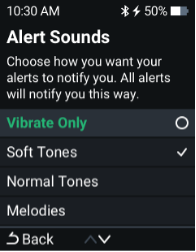
To activate the Vibrate Quiet Mode in the receiver:
- Navigate to Menu > Settings > Alert Sounds > Alert Sounds
- Select Vibrate Only
This applies to both Dexcom G7 and Dexcom G7 15 Day CGM Systems.
Was this article helpful?


MAT-1042