
Smart Glucose Meter
Upgrading Your CGM to Dexcom G7
Published: Apr. 21, 2026
Updated: Apr. 23, 2026
8 min read
Your continuous glucose monitoring (CGM) system is your constant companion as you manage diabetes throughout your day. The best CGM system is the one that fits your lifestyle and provides the accurate glucose readings you need to make diabetes management decisions with confidence. If you’re ready to upgrade from your Dexcom G6 CGM System or FreeStyle Libre glucose monitoring system and you’re thinking about trying out Dexcom G7, here’s what you need to know about making the switch.
What’s the difference between Dexcom G6 and Dexcom G7?
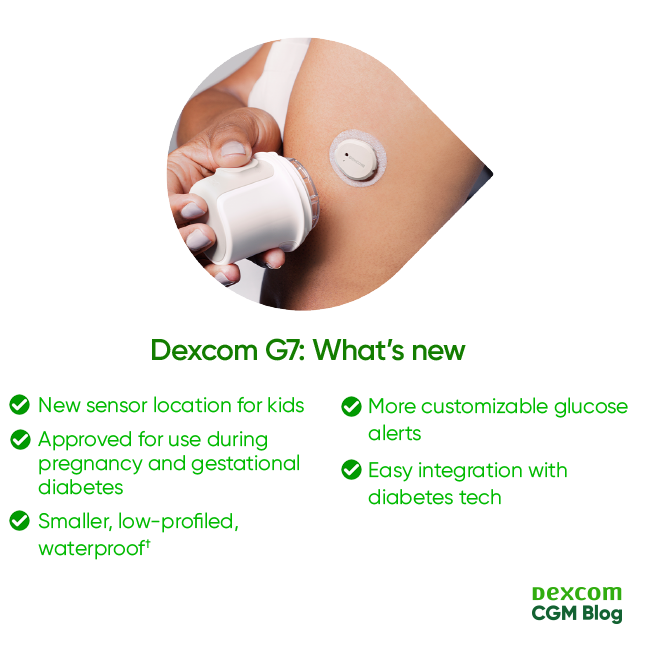
Dexcom G7 is the latest generation of CGM technology from Dexcom. It’s the most accurate CGM system available in Canada.*1,2 Building on the powerful features in Dexcom G6—like the predictive low glucose alert—Dexcom G7 provides an enhanced experience through updates including an all-new smaller, waterproof sensor†, more flexible high glucose alert settings, a 30-minute warmup period, and a 12-hour sensor change grace period.
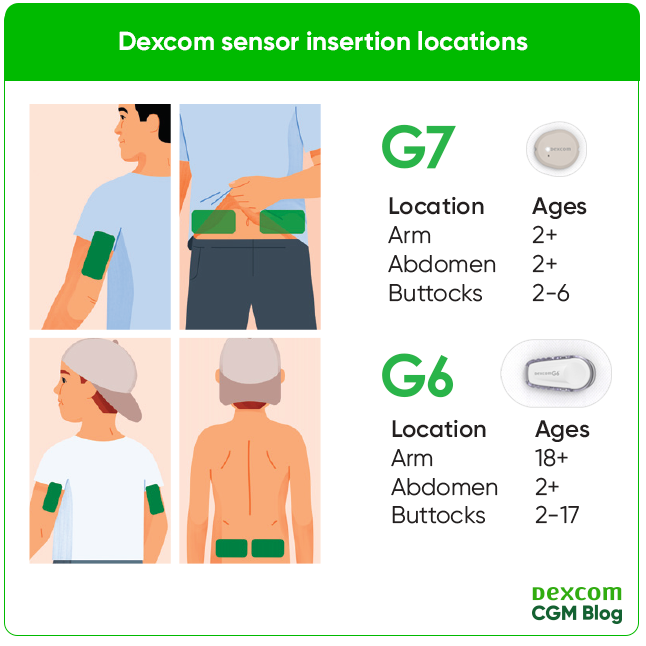
New wear locations for kids
Like Dexcom G6, Dexcom G7 can be used by kids as young as two years old.
Dexcom G7 is also the only CGM system available in Canada that’s approved for use during pregnancy and for those experiencing gestational diabetes.
Our smallest, most streamlined sensor yet
One key difference between the two CGM systems is that the Dexcom G7 sensor is smaller and more low-profile than the Dexcom G6 sensor. You can feel confident wearing your sensor discreetly under your favourite outfits. The Dexcom G7 sensor is also waterproof in up to 2.4 metres (8 feet) of water for up to 24 hours. This gives you greater freedom to swim, sweat, and bathe without worrying about disrupting your continuous glucose readings.†
Glucose alerts that work for you
Like Dexcom G6, Dexcom G7 offers a built-in Low Glucose alert that can let you know the moment your levels drop below 3.1 mmol/L. It can also provide a predictive Urgent Low Soon alert that can notify you up to 20 minutes before you’re likely to experience a low under 3.1 mmol/L.‡
Dexcom G7 also has a high glucose alert that you can customize with the new Delay 1st Alert feature. When you set up Delay 1st Alert, Dexcom G7 will only notify you about high glucose if your levels have been elevated above the threshold you’ve set for your chosen period of time. For example, you can choose to be notified about high glucose only if your levels are above 9.0 mmol/L for more than 15 minutes.
Seamless connections to diabetes management tech
Dexcom G7 can be connected with the apps, devices, and insulin delivery systems you already love. You can link up your favourite health apps like Glooko, Sugarmate, and Rx Food to get a complete picture of your diabetes management. You can also get your Dexcom G7 readings directly on your Apple Watch, so you don’t need to keep your phone or receiver on you to get real-time insight into your glucose levels.§ The Dexcom G7 app on your smartphone can also be linked to your Garmin smartwatch or cycling computer, making it easy to check your glucose at a glance mid-workout.||,¶,#,**,††
Dexcom G7 can be connected with your Omnipod5‡‡,§§ or Tandem t:Slim X2™️ insulin pump||||. Both integrations can support automated insulin delivery (AID) which can help streamline your insulin dosing routine and give you greater peace of mind around keeping your glucose levels stable.
How to get a Dexcom G7 CGM System
You can purchase Dexcom G7 at your local pharmacy with or without a prescription. You can get a prescription for Dexcom G7 from your doctor or endocrinologist, which you will need if you want to take advantage of insurance coverage. Dexcom G7 is covered by most private, provincial, and federal health insurance plans in Canada. You can also save up to 20% of the out-of-pocket costs of Dexcom G7 through the Dexcom Savings Program, whether you have insurance coverage or not.¶¶
Always consult your diabetes care team before making any changes to your diabetes management routine. If you’re currently using Dexcom G6, be sure to set up an appointment to speak with your family doctor or endocrinologist about switching to Dexcom G7. They can help you determine whether trying out a new CGM system fits into your current diabetes treatment plan and provide guidance around navigating the transition.

Preparing to switch over to Dexcom G7
When you’re ready to swap out your FreeStyle Libre or Dexcom G6 sensor for your new Dexcom G7 sensor, make time to go through the process at your own pace. If you’re used to quickly switching your FreeStyle Libre or Dexcom G6 sensor, be aware that you might need a couple of extra minutes to go through the Dexcom G7 app setup for the first time. It’s also smart to take your time with sensor application. Dexcom G7 has a more streamlined applicator than Dexcom G6. If you’re used to applying your Dexcom G6, it may be a good idea to practice holding the new Dexcom G7 applicator against your chosen insertion site.
In addition to watching the videos and reading the information provided during app setup, you might also want to set aside time to check out the Dexcom G7 user guide. This will give you a solid introduction to how Dexcom G7 works and the exciting updates you’ll find on the Dexcom G7 that aren’t available on Dexcom G6.
Transitioning from Dexcom G6 to Dexcom G7 in five easy steps
Getting started with Dexcom G7 is simple and intuitive. Once you’ve purchased your Dexcom G7 system and are ready to sit down to make the switch, here’s how to transition away from your Dexcom G6 and set up your new Dexcom G7 CGM System:
1. End your Dexcom G6 sensor session
Check to make sure your Dexcom G6 sensor is no longer active. If it is, end your sensor session in your Dexcom G6 app.
2. Delete the Dexcom G6 app
Once you end your sensor session, go ahead and delete the Dexcom G6 app from your device.
On iPhone, navigate to the Home Screen and press and hold the Dexcom G6 app icon until a menu pops up. Select “Remove App” and then “Delete App.”
On Android devices, navigate to the Google Play Store app. In the top right corner, tap the Profile icon and go to “Manage apps & devices” and then “Manage.” Select the Dexcom G6 app from the list and tap “Uninstall.”
3. Download the Dexcom G7 app and log in with your existing username and password
When you open the app, you’ll be prompted to log in as an existing Dexcom user. You need to put in the same username and password you were using for the Dexcom G6 app to retain all your previous glucose data. There’s no need to set up a new username and password or create a new account for the Dexcom G7 app.
4. Follow the on-screen instructions to set up the Dexcom G7 app
Once you’re logged in, you’ll be guided through several screens introducing you to Dexcom G7 and prompting you to set up your app by enabling Bluetooth and turning on other required phone settings.
5. Apply your Dexcom G7 sensor and pair it with your app
Adults and kids aged seven and up can wear Dexcom G7 on the back of their arm or lower abdomen. Kids from the ages of two to six can wear it in either of these locations, or opt to wear it on their upper buttocks. Once you’ve chosen your application site, follow the instructions on your app to insert your sensor.
After you apply your sensor, you’ll be prompted to pair it with your app by taking a photo of the QR code or typing in the sensor code, both of which are found on the side of the applicator.
When your sensor is paired, it will start its 30-minute warmup. When the warmup is over, you’ll start getting your glucose readings.
Getting started with Dexcom G7
Switching from FreeStyle Libre to Dexcom G7 in five easy steps
If you’re currently using a FreeStyle Libre glucose monitoring system, like FreeStyle Libre 2 or FreeStyle Libre 3 Plus, it’s simple to switch to Dexcom G7. Before you make the swap, it’s smart to make sure that your device is compatible with Dexcom G7 and find out whether you can connect your health apps or insulin delivery system.§,*** Be sure to schedule an appointment with your doctor to discuss whether Dexcom G7 is right for you and make a plan for transitioning between the two systems.
Once you’ve purchased your first Dexcom G7 CGM System, here’s how to get started:
1. Save your glucose data from your LibreView account
You won’t be able to transfer glucose data from your FreeStyle Libre system over to your Dexcom G7. If you want to keep your past glucose data for reference, be sure to download your reports from your LibreView account. You may want to check with your doctor to see if there are specific reports they would like you to download.
2. End your final FreeStyle Libre sensor session and delete your app
When you’re ready to put on your Dexcom G7 sensor, simply remove your FreeStyle Libre sensor as you usually would and delete the FreeStyle Libre app from your device.
On iPhone, navigate to the Home Screen and press and hold the FreeStyle Libre app icon until a menu pops up. Select “Remove App” and then “Delete App.”
On Android devices, navigate to the Google Play Store app. In the top right corner, tap the Profile icon and go to “Manage apps & devices” and then “Manage.” Select the FreeStyle Libre app from the list and tap “Uninstall.”
3. Download the Dexcom G7 app and create your Dexcom G7 account
When you open the app, you’ll be prompted to create a new Dexcom account using your email or phone number. You’ll also set a username and password that you’ll use for your Dexcom G7 app as well as Dexcom Clarity, which gives you access to extended glucose reports and insights, and your My Dexcom Account, where you can get self-service technical support when you need it.
Once you’re logged in, you’ll be guided through several screens introducing you to Dexcom G7 and prompting you to set up your app by enabling Bluetooth and turning on other required phone settings.
4. Apply your Dexcom G7 sensor and pair it with your app
Unlike FreeStyle Libre sensors, which can only be worn on the back of the upper arm, Dexcom G7 can be worn either on the back of the arm or the lower abdomen. Kids from ages two to six can also wear it on their upper buttocks.
The Dexcom G7 sensor applicator is very similar to the FreeStyle Libre system applicators you’re likely already familiar with. However, the process of applying the sensor is different, so be sure to follow the instructions on the app for inserting your sensor properly.
5. Pair your sensor with your Dexcom G7 app
After you apply your sensor, you’ll be prompted to pair it with your app by taking a photo of the QR code or typing in the sensor code, both of which are found on the side of the applicator.
When your sensor is paired, it will start its 30-minute warmup—the fastest sensor warmup time of any CGM system available in Canada.3 When the warmup is over, you’ll start getting your glucose readings.
Using Dexcom G7 for the first time FAQs
Is Dexcom G7 covered by my insurance?
Dexcom G7 is covered by most private and provincial health insurance plans in Canada. You can check if your plan offers coverage here. You can also get in touch with our team to discuss your coverage options by submitting an online support request or calling us at 1-844-832-1810.
Can I use Dexcom G6 components with my Dexcom G7?
No. Dexcom G6 sensors, transmitters, and receivers are not compatible with the Dexcom G7 CGM app, sensors, nor receiver. If you would like to use a compatible smart device with the Dexcom G7 sensor, you will need to download the new Dexcom G7 app. The Dexcom G7 CGM System will work with existing versions of the Dexcom Clarity and Follow apps.
*Compatible smart devices sold separately. To view a list of compatible smart devices, visit dexcom.com/compatibility.
How do I order Dexcom CGM supplies at my local pharmacy?
First, contact your local pharmacy to ensure that they have Dexcom CGM supplies in stock. Your pharmacist will then prepare your order and contact you when it is ready.
If your pharmacy doesn’t have supplies in stock or are unsure how to order, contact Dexcom Customer Service and provide your pharmacy’s name, location, and phone number. Our team will then follow up with your pharmacy to ensure they are able to order supplies on your behalf.
Dexcom Customer Service
- 1-844-832-1810
- [email protected]
- Monday to Friday, 9am – 8pm EST
Need support getting started with Dexcom G7? Get in touch with our team
When you’re making the switch to Dexcom G7, our team is here to support you every step of the way. The Dexcom Care team can guide you through the process of putting on your first Dexcom G7 sensor and setting up your app. We also have a team of Certified Diabetes Educators (CDEs) who can provide personalized guidance around your Dexcom G7 and answer questions you have about diabetes management. Reaching out for help at the start can set you up for success and give you a little extra confidence as you make Dexcom G7 a part of your everyday diabetes management routine.
* When compared with CGM systems commercially available in Canada as of July 2025.
† The Dexcom G7 Sensor is waterproof and may be submerged under eight feet of water for up to 24 hours without failure when properly installed.
‡ This predictive alert can be triggered with impending hypoglycemia (glucose of 3.1 mmol/L or below is predicted to occur within the next 20 minutes).
§ Compatible smartphone is required to pair a new Dexcom G7 sensor with a compatible Apple Watch. To use Share/Follow the smartphone must be within 10 meters (33 feet) of the Dexcom G7.
|| The Dexcom apps on Connect IQ are only for secondary display of data from the Dexcom CGM system and are for passive monitoring purposes only. The Dexcom apps on Connect IQ are not intended to replace the Dexcom CGM System, nor replace self-monitoring practices as advised by a physician. All therapeutic decisions, including those regarding calculating insulin or other drug doses, should not be based on data displayed in the Dexcom apps on Connect IQ.
¶ Dexcom CGM System required for use.
# Must have the Dexcom app on Connect IQ downloaded to a compatible smartwatch to add Dexcom data to the watch face.
** Compatible smartphones must have a data connection and be in BLE range of both the Dexcom CGM and Garmin smartwatch or Edge® cycling computer.
†† For a list of compatible devices, click here. Edge® devices are only compatible with the Dexcom Connect IQ data field.
‡‡ The Omnipod 5 AID System is currently only available in Ontario and Nova Scotia, despite being approved for use in Canada. Availability in other provinces and territories may vary.
§§ Boluses for meals and corrections are still necessary. Dexcom CGM Systems and the Omnipod 5 AID System are sold separately and require a separate prescription. Omnipod is a registered trademark of Insulet Corporation and used with permission.
|||| Not all connections are available in Canada. To learn more about insulin pump integrations and compatibility with Dexcom CGM Systems, click here.
¶¶ Based on reasonable upcharge, mark-up, and customary pharmacy dispensing fee.
## When combining private insurance with the Dexcom G7 Patient Support Program. Eligibility and savings amount may vary.
***Smart devices sold separately. For a list of compatible devices, please visit dexcom.com/compatibility.